Get Started with Basic Linux Commands: Learn the Basics. #Day-2
Getting Familiar with Basic Linux Commands

👋 Hi there! I'm Nikunj Vaishnav, a passionate QA engineer Cloud, and DevOps. I thrive on exploring new technologies and sharing my journey through code. From designing cloud infrastructures to ensuring software quality, I'm deeply involved in CI/CD pipelines, automated testing, and containerization with Docker. I'm always eager to grow in the ever-evolving fields of Software Testing, Cloud and DevOps. My goal is to simplify complex concepts, offer practical tips on automation and testing, and inspire others in the tech community. Let's connect, learn, and build high-quality software together! 📝 Check out my blog for tutorials and insights on cloud infrastructure, QA best practices, and DevOps. Feel free to reach out – I’m always open to discussions, collaborations, and feedback!
What is Command?
Linux commands are instructions that you can give to a Linux operating system to perform specific tasks. These commands are typed into a command-line interface (CLI) or terminal. Linux commands are powerful and versatile, allowing users to control the operating system, manage files and directories, and perform a wide variety of administrative tasks. Here are some common Linux commands
Navigating through the file system and managing directories in Unix/Linux is crucial for effective system administration and development. Here, we’ll going into some essential commands: those for listing directory contents (ls commands) and for directory navigation and manipulation (pwd, cd, and mkdir commands).
Listing Commands with ls
The ls command is used to list files and directories. By using various options and flags, you can customize the output to display detailed information, hidden files, files with specific extensions, and more.
Basic Usage / Syntax
ls [option_flag] [arguments]
This command lists the subdirectories and files in the current directory.
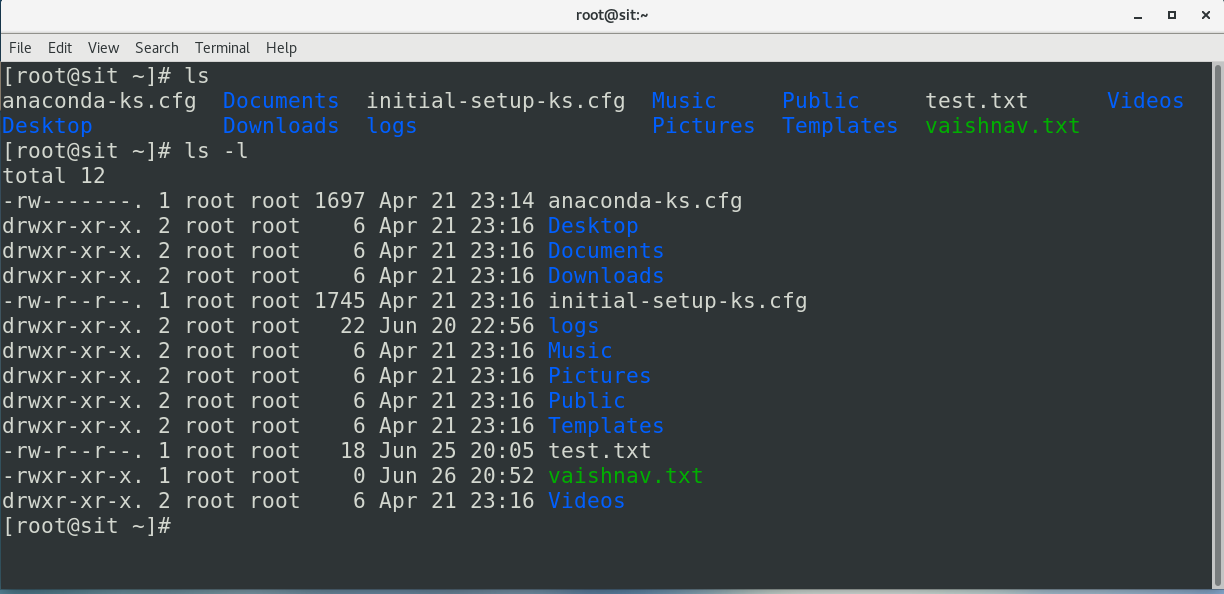
Long List Format
ls -l
Lists files and directories in a long format, providing extra information such as permissions, number of links, owner, group, size, and timestamp.
Including Hidden Files
ls -a
Lists all files, including hidden ones (files starting with a dot .).

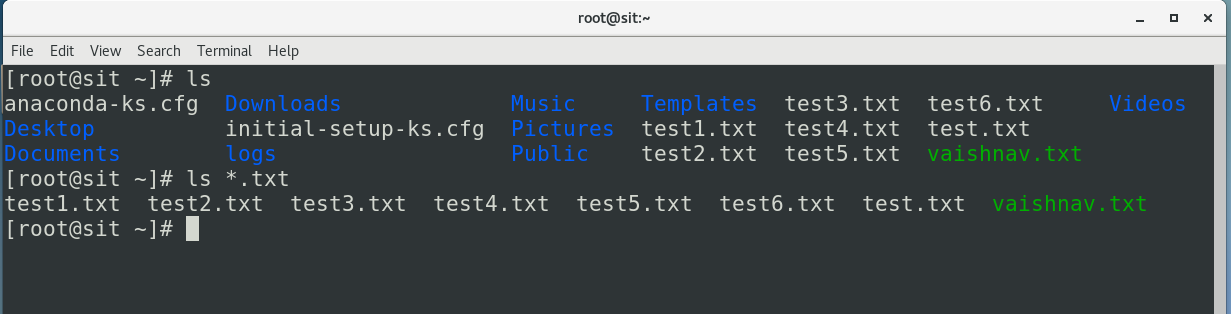
Specific File Extension
ls *.txt
Lists all files with the .txt extension. (* is Wildcard char use for apply filter).
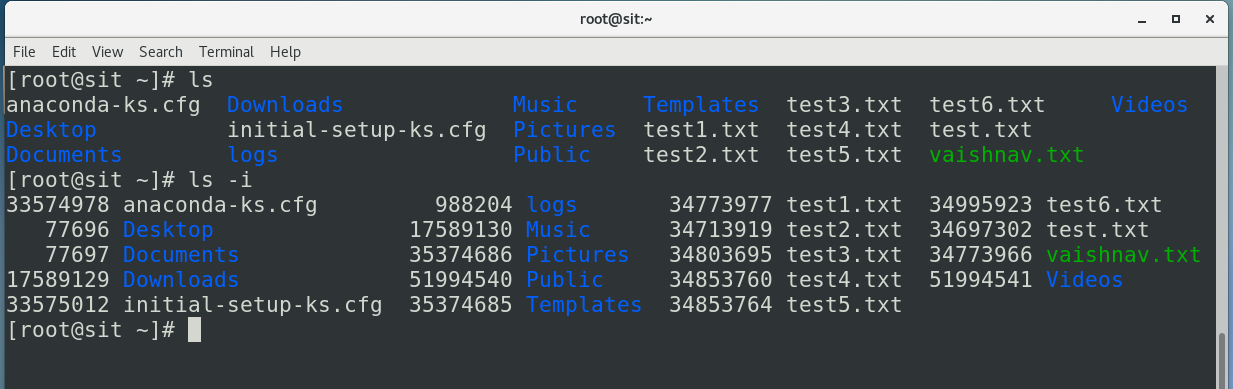
Index Numbers (Inodes)
ls -i
Lists files and directories with their index numbers (inodes).
Only Directories
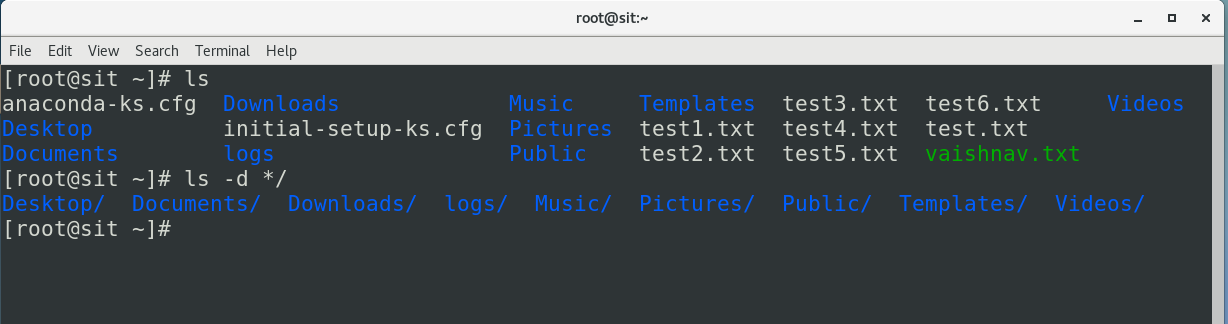
ls -d */
Lists only directories. You can also specify a pattern to filter directories.
Directory Commands
Managing directories efficiently is vital for maintaining an organized file system. Here are some fundamental directory commands:
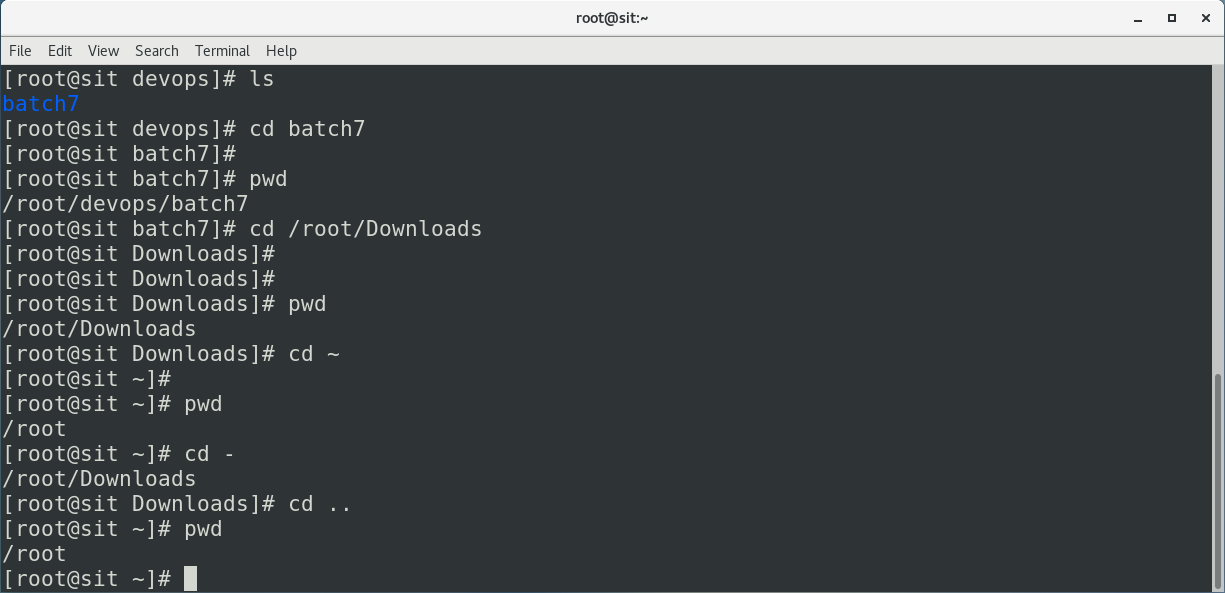
Print Working Directory
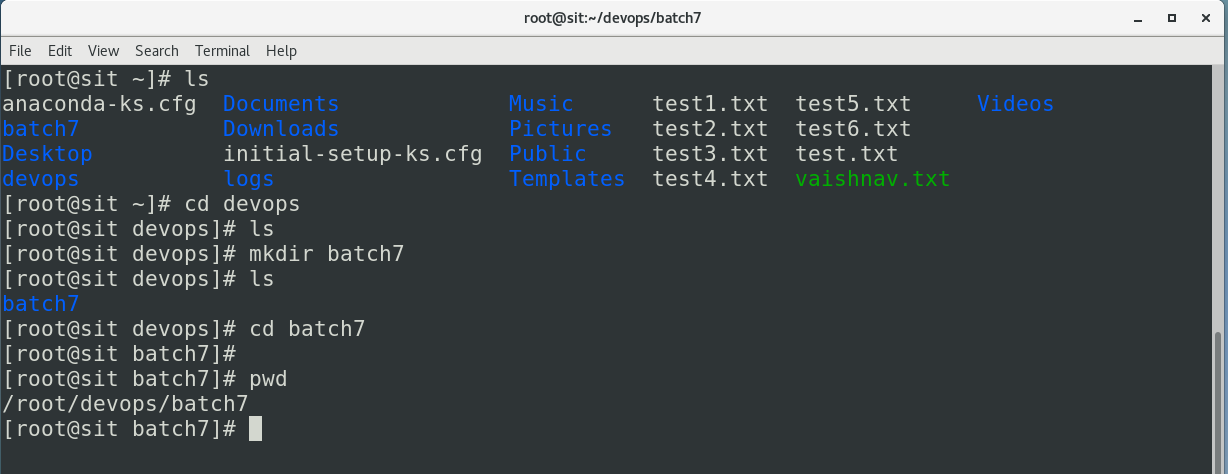
pwd
Prints the current working directory path.
Change Directory
cd [path_to_directory]
Changes the current directory to the specified path.

Home Directory
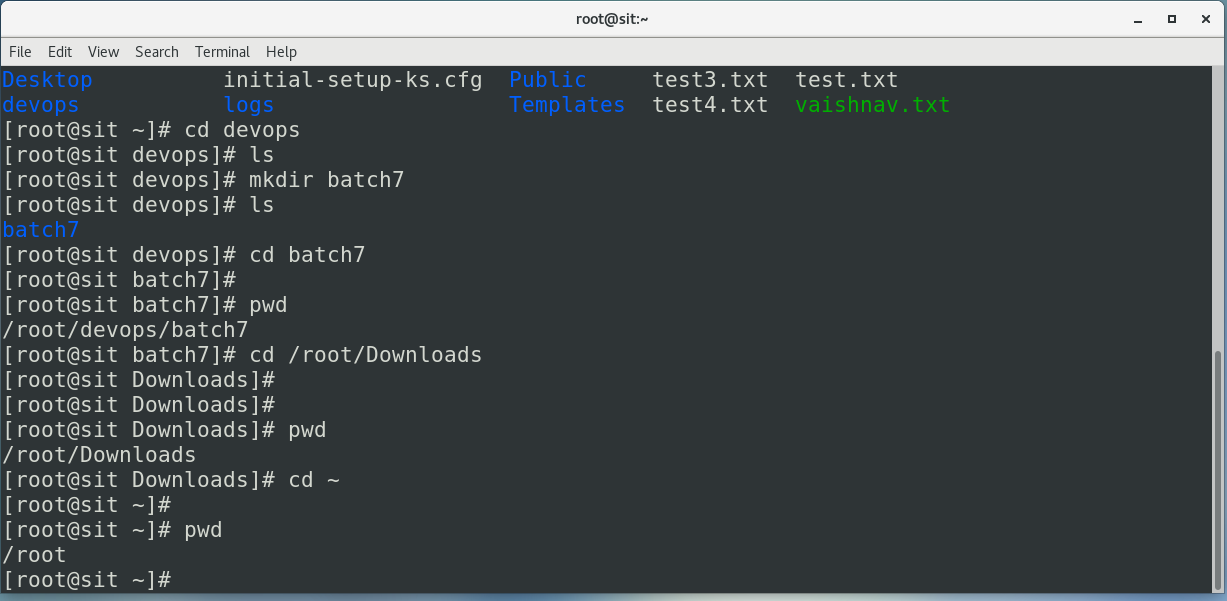
cd ~
cd
Changes to the home directory.
Previous Directory
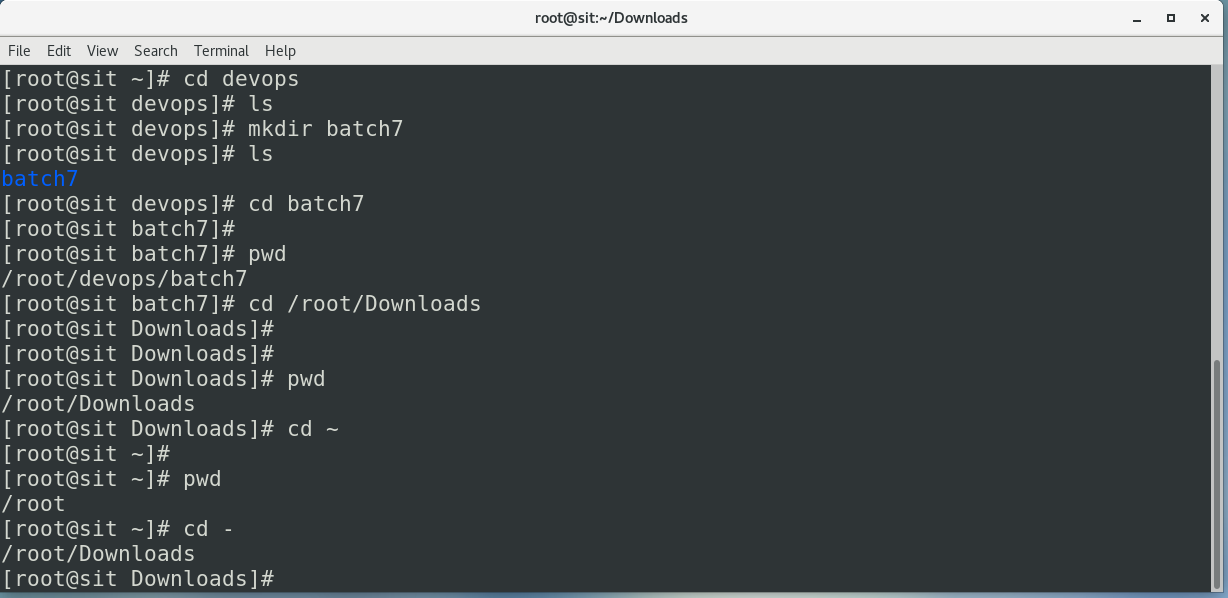
cd -
Switches to the last working directory.
One Level Up
cd ..
Moves up one directory level.
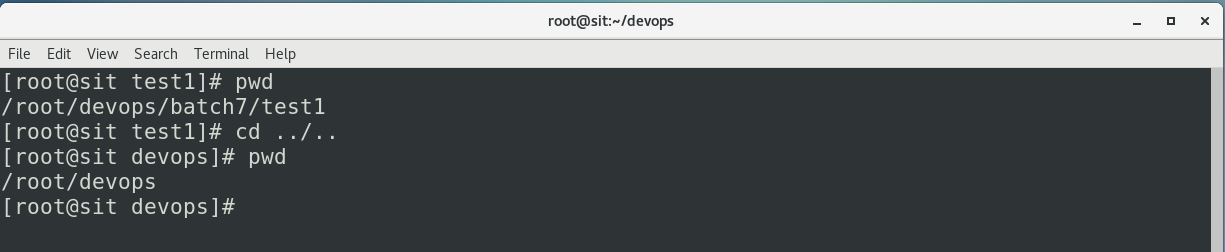
Two Levels Up
cd ../..
Moves up two directory levels.
Creating Directories
The mkdir command is used to create new directories. You can create single or multiple directories, hidden directories, and nested directories.
Basic Usage
mkdir [directoryName]
Creates a directory with the specified name in the current location.
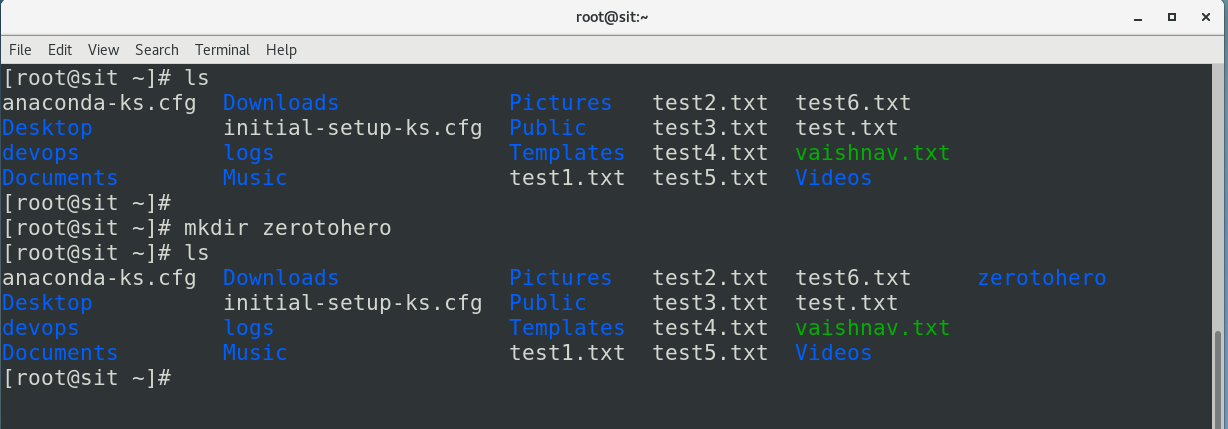
Single Directory
mkdir zerotohero
Creates a new directory named zerotohero.
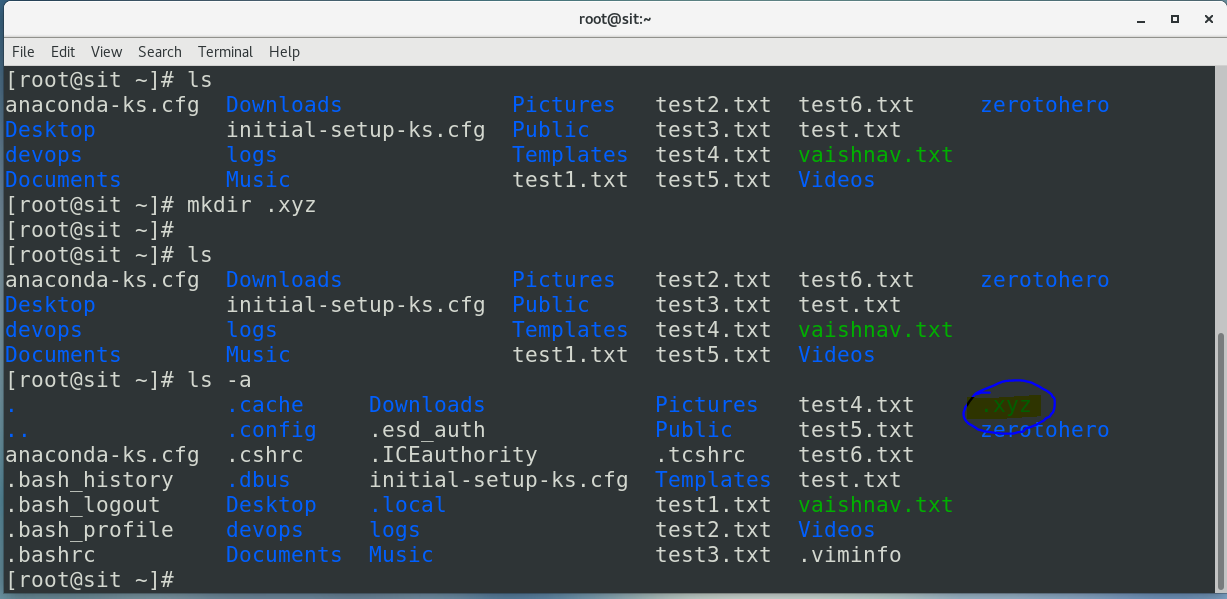
Hidden Directory
mkdir .xyz
Creates a hidden directory (prefixing the name with a dot . makes it hidden).
Multiple Directories
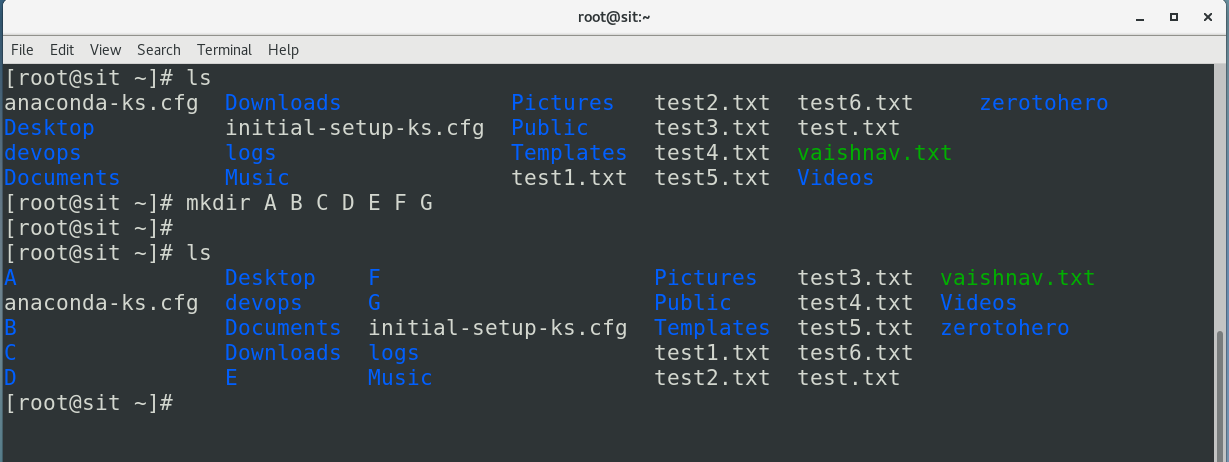
mkdir A B C D
Creates multiple directories (A, B, C, and D) at once.
Specific Location
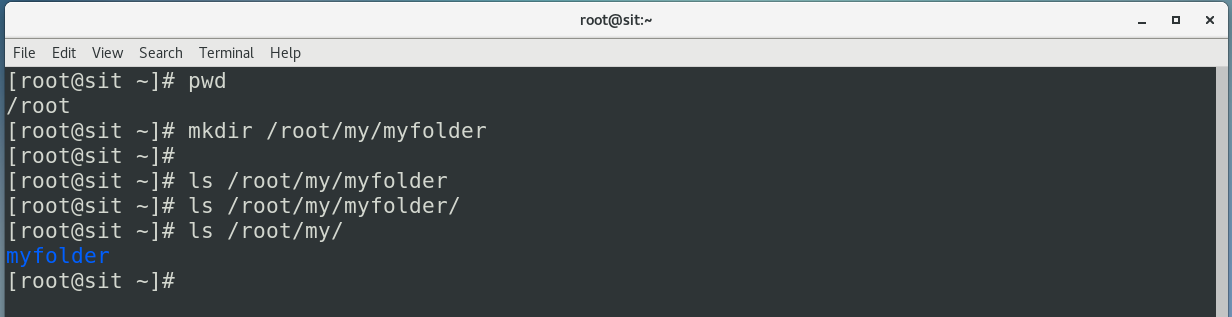
mkdir /root/my/myfolder
Creates a new directory at a specified location.
Nested Directories
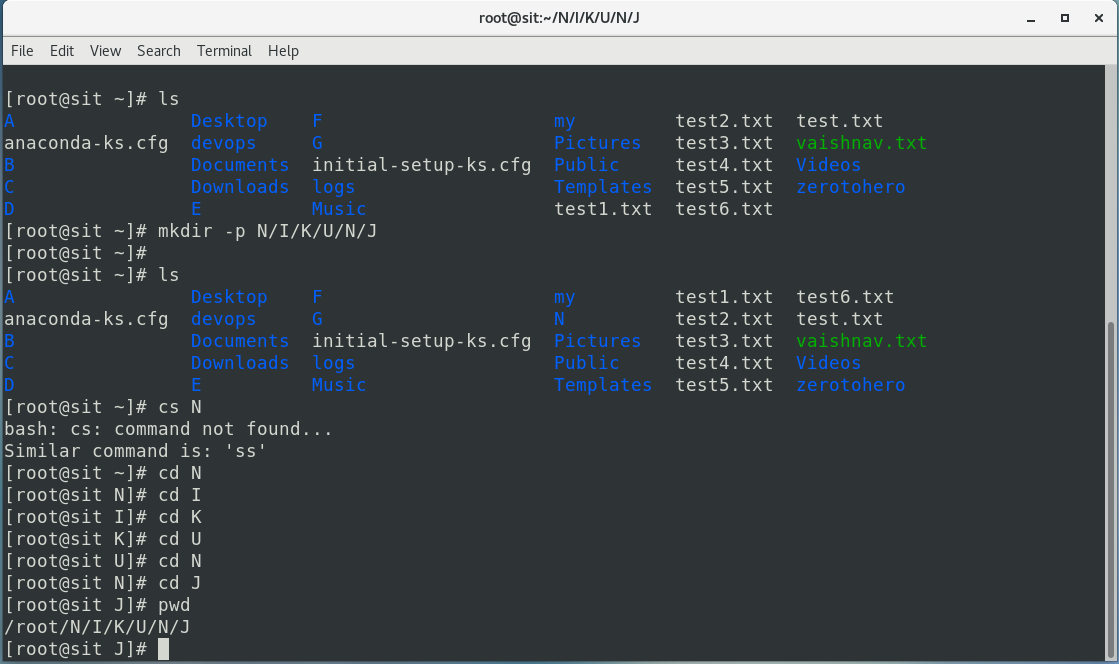
mkdir -p N/I/K/U/N/J
Creates a nested directory structure (N/I/K/U/N/J).
By mastering these ls, pwd, cd, and mkdir commands, you can effectively navigate and manage the file system in Unix/Linux environments. These commands form the foundation of many administrative and development tasks, making them essential for any Unix/Linux user.
Conclusion
Mastering basic Linux commands such as ls, pwd, cd, and mkdir is essential for efficient navigation and management of the file system. These commands provide the foundation for many administrative and development tasks, enabling users to control their environment effectively. By understanding and utilizing these commands, you can enhance your productivity and streamline your workflow in Unix/Linux systems. Whether you are a beginner or an experienced user, these fundamental commands are invaluable tools in your Linux toolkit.
#Day-2
Connect and Follow Me On Socials :
Like👍 | Share📲 | Comment💭


